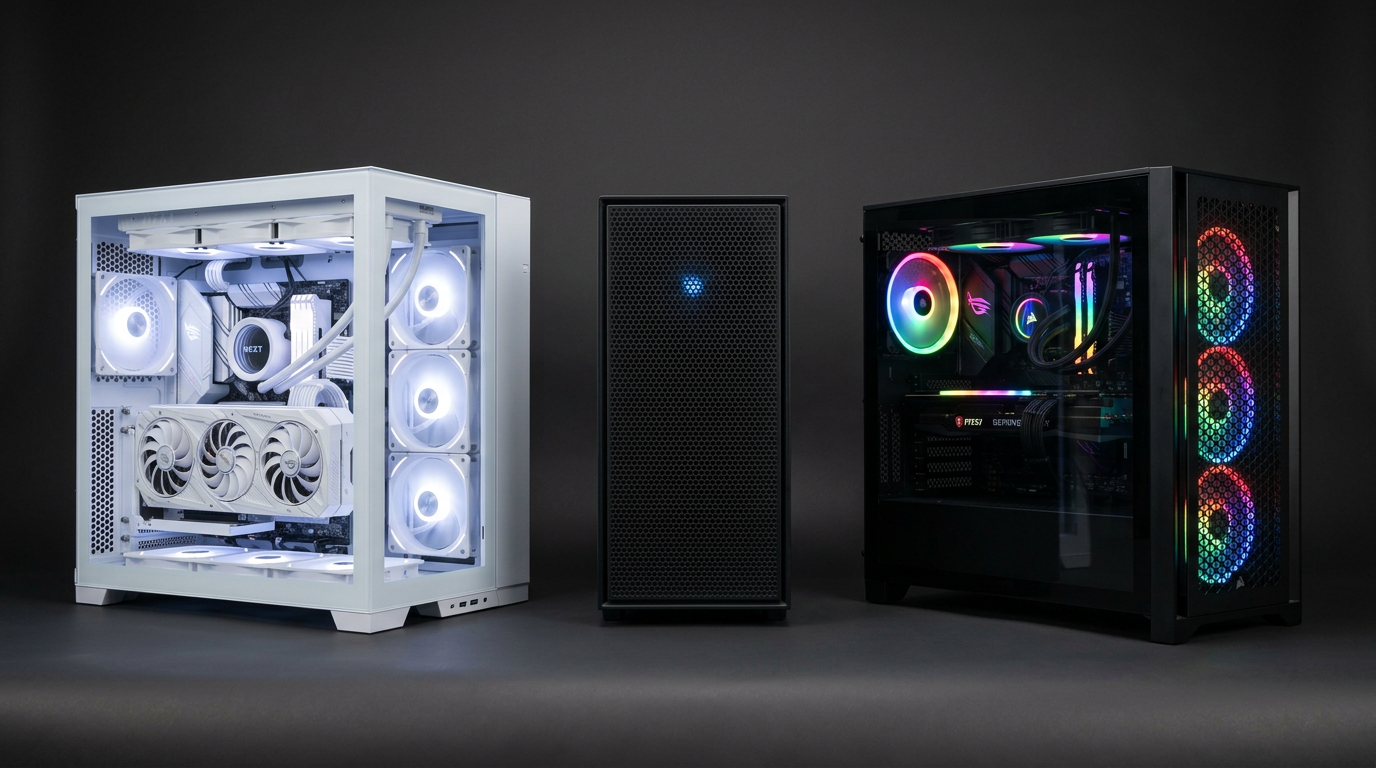
The First Hour With a New Gaming PC: A Setup Checklist
An hour of checks when the machine arrives catches shipping damage, confirms you got the specs you paid for, and gives you a baseline for the next three years.
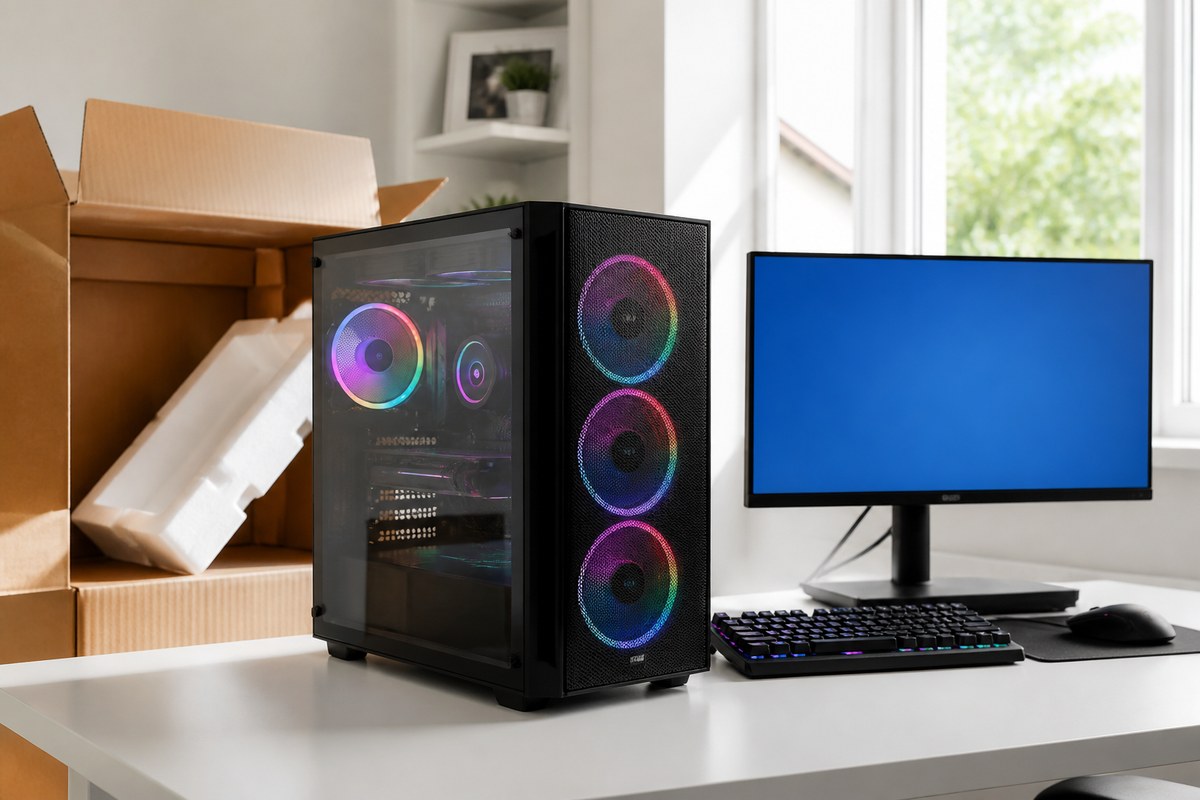
Most people plug a new gaming PC in, install Steam, and start playing. That works, and it also means a misconfigured memory profile or a card that shook loose in transit goes unnoticed for months. The checks below take about an hour, need no tools beyond what came in the box, and confirm three things: nothing broke on the way to you, the parts match what you bought, and the machine is running at the speed it is supposed to. The last step also gives you a performance record, which is the only reliable way to tell later whether the PC has slowed down or you have just gotten used to it.
Before you press the power button
Let the machine reach room temperature first. A PC that has been in a cold vehicle can form condensation on internal surfaces when it comes indoors, and powering it up wet is how you turn a delivery into a repair. An hour in the room is enough in most conditions, longer in an Ontario winter.
Then look inside. Take the side panel off, which is usually two thumbscrews, and check that the graphics card is fully seated in its slot with the retention clip engaged, that the CPU cooler does not move when nudged gently, and that no cables have come loose. Transport vibration works heavy components loose more often than people expect, and a card sitting slightly proud of its slot is the most common cause of a machine that arrives with no display.
Look for anything obviously wrong: a fan blade that catches when spun by hand, a loose screw rolling around the bottom of the case, or a disconnected front panel cable. If the PC does power on but shows nothing, our no display diagnosis guide works through the causes in a safe order.
First boot and BIOS checks
Go into the BIOS before you go into Windows. It takes five minutes and tells you whether the hardware matches the listing.
- Press Delete or F2 repeatedly as the machine powers on to enter the BIOS.
- Read the processor name and installed memory total on the main screen. Confirm both match what you paid for.
- Check that every storage drive appears. A drive that is present but unlisted usually means a loose SATA or power cable rather than a dead drive.
- Confirm the CPU temperature at idle. Anything from the mid 30s to mid 40s Celsius is normal. Sitting at 70 degrees while doing nothing indicates a cooler mounting problem worth resolving before you use the machine.
- Note the BIOS version and date. You do not need to update it if the system is stable, and our notes on when a BIOS update is worth the risk explain why leaving a working BIOS alone is often correct.
Turn on your memory speed profile
This is the step that gets skipped most often and costs the most free performance. Memory ships running at a conservative default speed defined by the JEDEC standard, not the speed printed on the box. A 6000MHz DDR5 kit will run at 4800MHz until you enable its profile.
The setting is called EXPO on AMD systems and XMP on Intel systems, and it lives in the BIOS memory or overclocking section. Enable the profile, save, and restart. The machine may restart itself once or twice while it trains the memory, which is normal.
Verify afterwards in Task Manager under the Performance tab and the Memory section. The reported speed should match the rating, and the slot layout should show dual channel. Running the correct speed in dual channel is worth a meaningful frame rate gain in CPU-limited games, and it is free. Our EXPO and dual channel guide covers what to do when the profile causes instability.
Drivers, in the right order
Order matters here because installing the graphics driver before the chipset driver occasionally produces odd behaviour that is hard to diagnose later.
Start with Windows Update and let it finish completely, including the optional restarts. Then install the motherboard chipset driver from the manufacturer's support page for your exact board model, which handles power management and the storage controller. Then install the graphics driver directly from NVIDIA, AMD, or Intel rather than letting Windows Update supply it, because the version Windows ships is usually months behind.
Skip the manufacturer's bundled utility software unless you need it for lighting or fan control. Most of it runs at startup, consumes memory, and adds nothing. If you do want fan control, the BIOS curve covers it without any software running in Windows.
If your machine came with a fresh Windows install and you would rather start from scratch anyway, our clean install walkthrough covers doing it properly.
Record a baseline you can compare against later
A performance baseline taken on day one is the only honest reference point you will have. In two years, when the machine feels slower, you can measure instead of guess.
Run a repeatable benchmark and write down the score. A built-in game benchmark works, and so does a free synthetic test, as long as you use the same one each time and note the settings. Record the frame rate, the CPU and GPU temperatures at the end of the run, and the date. A screenshot in a folder is enough.
Then run something demanding for half an hour and watch temperatures. A CPU under 85 degrees and a GPU under 80 degrees during sustained load is healthy for most builds. Higher than that is not necessarily a fault, but it is worth investigating while the machine is new. Interpreting these numbers is covered in more depth in our guide to reading benchmark results.
Windows settings worth changing on day one
A handful of defaults hold back gaming performance or create annoyances that are easier to fix now than after you have installed everything.
- Set your monitor to its full refresh rate. Windows frequently defaults a 144Hz or 165Hz display to 60Hz, and the setting lives under System, Display, Advanced display. This is the single most common reason a new PC feels no smoother than the old one.
- Switch the power plan to Balanced or High performance. Some systems ship on a power saving profile that limits the processor.
- Turn on Hardware-accelerated GPU scheduling and Game Mode under Settings, System, Display, Graphics, and Settings, Gaming.
- Enable Storage Sense or set a reminder to check free space. An NVMe drive slows noticeably once it passes roughly 80 percent full.
- Create a restore point once everything is installed and working. It costs nothing and it is the fastest way back from a bad driver.
- Check that Windows is activated under Settings, System, Activation, so you find out now rather than the first time you want to change a setting.
Frequently asked questions
Do I need to install drivers if the PC came with Windows already set up?
Usually yes, at least for graphics. A system that was prepared before shipping has drivers from whenever it was built, and graphics drivers in particular update frequently with fixes for new releases. Run Windows Update first, then install the current graphics driver from NVIDIA, AMD, or Intel directly. The chipset driver is worth confirming too, since it affects power management and storage performance.
Why is my new PC running RAM slower than advertised?
Because the speed profile is off by default. Memory ships at a conservative standard speed regardless of what the kit is rated for, and you have to enable EXPO on AMD or XMP on Intel in the BIOS to get the advertised figure. This is normal rather than a fault or a misleading listing. Enable the profile, restart, and confirm the new speed in Task Manager under the Performance tab.
What temperatures are normal for a new gaming PC?
At idle, expect a CPU in the mid 30s to mid 40s Celsius. Under a sustained gaming load, under 85 degrees for the CPU and under 80 for the GPU is healthy for most builds, though some high-end processors are designed to run hotter and will boost right up to their limit by design. What matters more than the exact number is consistency. A CPU that idles at 70 degrees has a cooler mounting problem worth fixing early.
Should I update the BIOS on a new PC?
Not unless you have a specific reason, such as support for a processor you plan to install or a documented fix for a problem you are experiencing. A BIOS update carries a small risk of leaving the board unbootable if it is interrupted, and a system that is running stably gains nothing from a newer version. Note the current version so you have it if you need to troubleshoot later, and leave it alone otherwise.
Key takeaways
- Let a delivered PC reach room temperature before powering it on, then check the graphics card is fully seated. Transport loosens heavy parts.
- Enable EXPO or XMP in the BIOS. Memory runs at a slow default until you do, and this is the largest free performance gain available on a new machine.
- Set your monitor to its full refresh rate in Windows. A 165Hz display defaulting to 60Hz is the usual reason a new PC does not feel faster.
Browse tested Ontario gaming PCs, or ask us about a listing before you buy.
Explore more