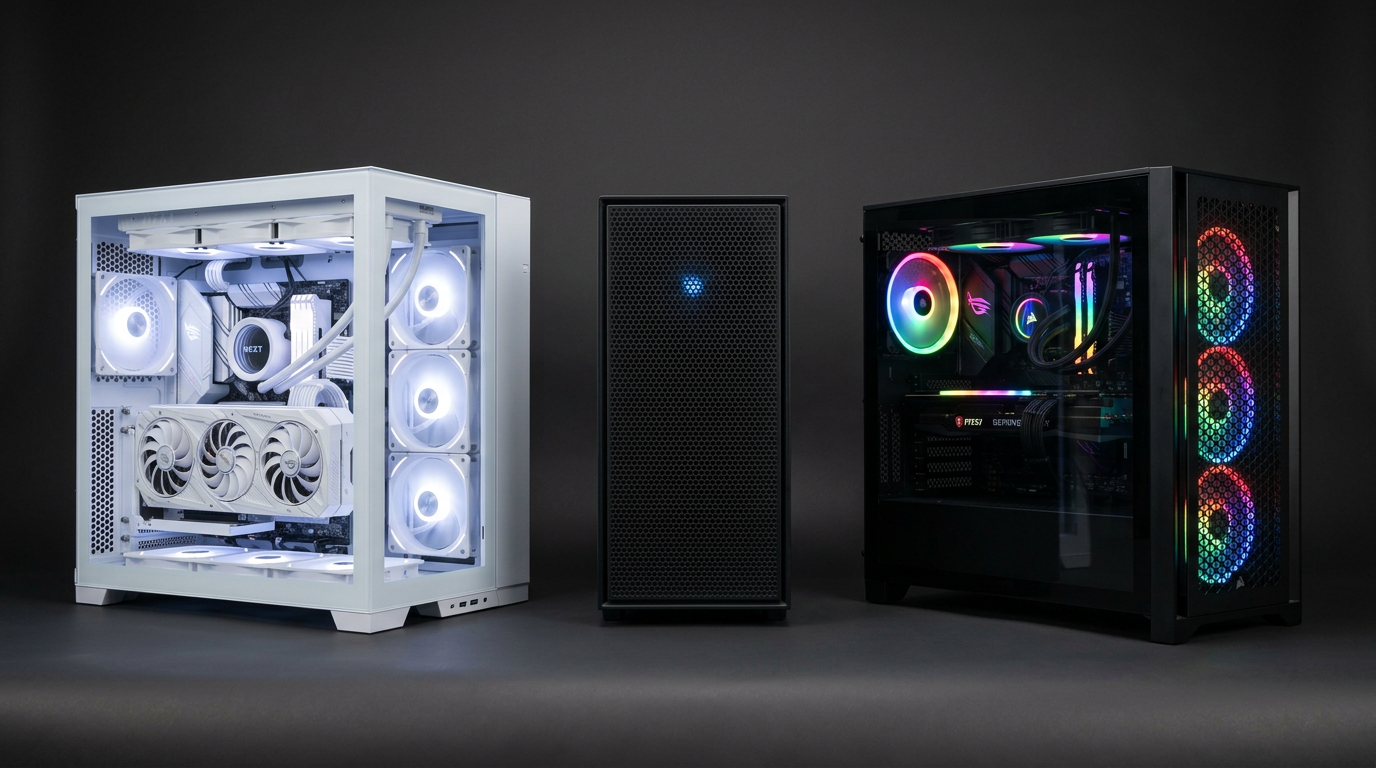
No Display After Moving a Gaming PC: Diagnosis Guide
A short car ride can loosen a graphics card, RAM module, monitor cable, or power connector without permanently damaging the PC.

A gaming PC that worked before transport but shows no display afterward usually has a connection or seating problem, but guessing can make things worse. Start outside the case, remove unnecessary devices, and change one variable at a time. This guide assumes the system powers on but the monitor receives no usable image. Burning smell, liquid damage, visible cracks, or repeated electrical clicking are stop conditions. Disconnect power and seek qualified service instead of continuing.
Check the monitor and signal path first
Confirm the monitor powers on, the correct input is selected, and its on-screen menu appears. Reseat the cable at both ends and test a known-good cable or another display. Connect the monitor to the graphics card, not the motherboard, unless the CPU has integrated graphics and you intentionally test it. Remove adapters, docks, splitters, and capture devices. A monitor saying no signal is different from a black image with a working backlight, so record the exact behaviour.
Power down safely before opening the case
Shut the PC down, switch the power supply off, unplug it, and hold the case power button briefly to discharge residual power. Ground yourself on the bare chassis. Photograph the interior so cables can be returned correctly. Do not reseat parts while standby power is present. Look for a loose screw, fallen support bracket, disconnected cable, cracked glass, or liquid. If a heavy GPU was transported installed, inspect its alignment before applying force.
Reseat GPU power and the graphics card
Check every GPU power plug for full insertion, including adapter connections. Release the PCIe latch properly, remove the card while supporting its weight, inspect the gold contacts and slot, then reinstall it level until the latch engages. Secure the rear bracket and support the far end. Do not force a card past a bent bracket. For signs of mechanical damage, follow our GPU sag and PCIe slot guide before assuming reseating solved the cause.
Reseat and isolate memory modules
Transport vibration can loosen RAM enough to prevent power-on self-test, called POST. Remove and reinstall modules with both latches fully engaged. If no display remains, test one module in the board's recommended single-stick slot, then the other module. Disconnect nonessential USB devices and storage only if needed. Do not mix several changes before each boot because you will lose the evidence that identifies the fault.
- Test monitor input and a direct known-good cable.
- Inspect and reseat GPU power, GPU, and RAM with power removed.
- Boot a minimal configuration with one memory module.
- Read POST lights or beep codes before clearing settings.
Use POST indicators and integrated graphics
Many motherboards have CPU, DRAM, VGA, and BOOT diagnostic LEDs. Watch which light remains on and consult the exact manual. A VGA light directs attention to the GPU path; DRAM points toward memory training or seating. If the CPU supports integrated graphics, remove the discrete GPU and connect to the motherboard output as an isolation test. Not every CPU has integrated graphics, so a motherboard video port can legitimately produce no image.
Clear CMOS only after recording settings
If reseating and minimal boot do not help, record existing BIOS settings and use the board's documented clear-CMOS method with power disconnected. This resets memory profiles, boot order, and other configuration, so BitLocker recovery may be required later. Allow extra time for memory training after the reset. If there is still no POST, test known-good parts or obtain service. Repeatedly cycling power without a plan can hide an intermittent fault and adds no useful evidence.
Frequently asked questions
Why do the fans spin if the PC has no display?
Fans only show that some power is present. The system can fail POST because of GPU, RAM, CPU, motherboard, firmware, or power problems while fans and lighting still operate.
Should I plug HDMI into the motherboard?
Only if the installed CPU has integrated graphics and the motherboard output is enabled. Many gaming CPUs lack integrated graphics, so those ports cannot produce an image.
Can moving a PC damage the GPU slot?
Yes. A heavy installed GPU acts as a lever during bumps. Inspect the slot, latch, bracket, and card alignment, and remove heavy GPUs before future transport.
Will clearing CMOS delete my files?
It does not erase storage, but it resets firmware settings. Boot order, storage mode, Secure Boot, memory profiles, and TPM changes can affect Windows startup or trigger BitLocker recovery.
Key takeaways
- Start with the monitor and cable, then work inward.
- Remove power before reseating GPU, cables, or RAM.
- Use POST indicators and one change per test to preserve evidence.
Browse tested Ontario gaming PCs, or ask us about a listing before you buy.
Explore more